11 of the Top Teacher Technology Hacks (2025 Edition)
You’re probably using tech in your classroom all wrong — and it’s costing you time. Discover the 11 teacher technology hacks no one’s talking about for 2025. Ditch the chaos, skip the ads, and finally make your classroom run like it’s supposed to.
Hey friend. Here’s what I think — if you want a quick win article teachers will actually bookmark and use all year, this is it. These teacher technology hacks are simple, fast, and classroom-tested.
No complicated setups. No endless apps. Just tiny upgrades that make your day smoother and your students more independent.
I have to tell you about something that’s been saving my teacher brain lately. You know when you find a tiny little tech trick that changes everything in your classroom?
The kind that makes you say, “Wait, how did I not know this sooner?” Yeah. I went down a serious TikTok rabbit hole to collect these gems — all tested and loved by real teachers.

These teacher technology hacks aren’t about complicated apps or pricey gadgets. They’re simple tweaks you can use tomorrow to make your day smoother, your lessons cleaner, and your kids more independent.
I’ve listed each hack below (with full transcripts so you can follow along easily).
Ready? Grab your coffee — let’s geek out on some teacher hacks together. ☕
1. Ad-Free YouTube Hack
What it is: Play YouTube videos for your class without the usual chaos when ads appear.
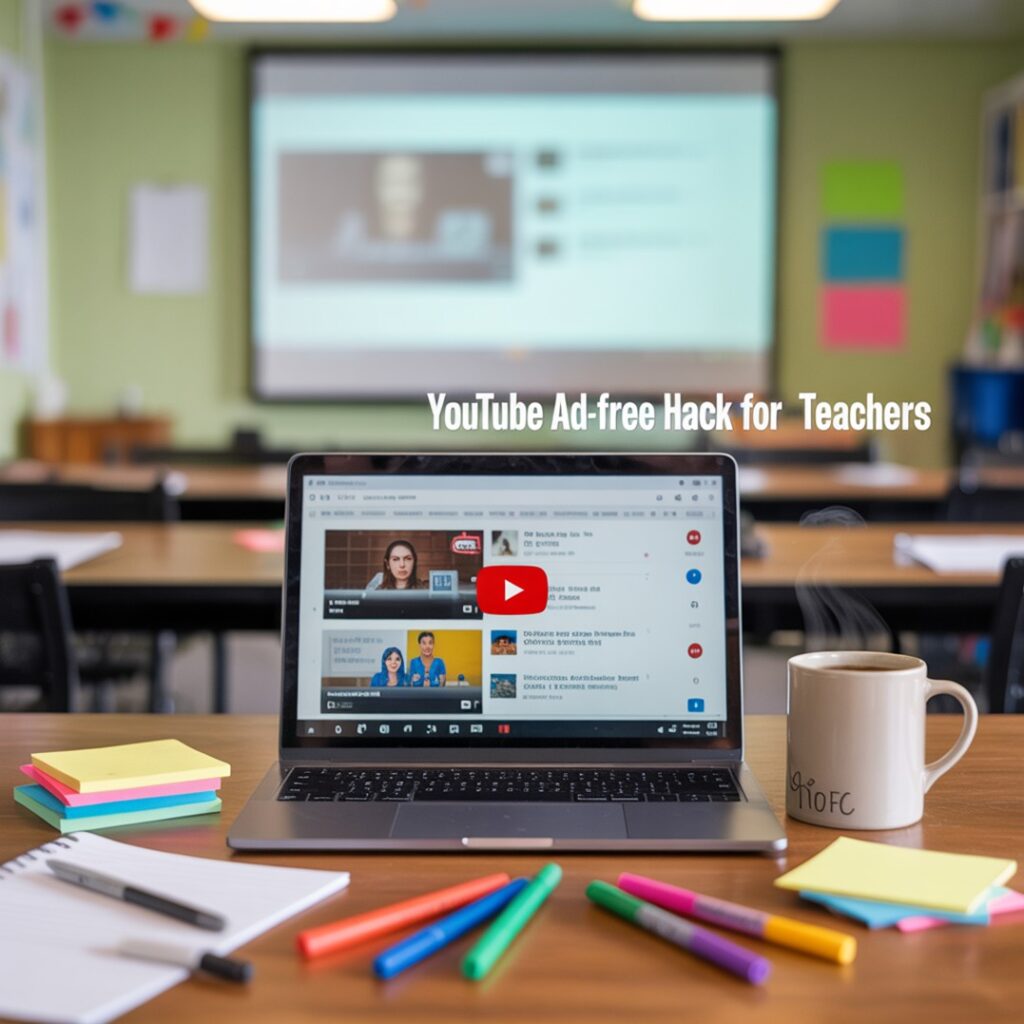
How to do it: Open the video, click the URL, and right after the word watch add _popup then press Enter. Use that link in your slides and the video opens clean and ad-free. Check out how this teacher uses it — it’s genius for smooth transitions during lessons.
Transcript:
Go to the URL, and after the word watch, add underscore popup, then hit enter… copy this link… paste it in your presentation… there’s no ad. It just plays.
Mini tip: Test links before class since filters vary.
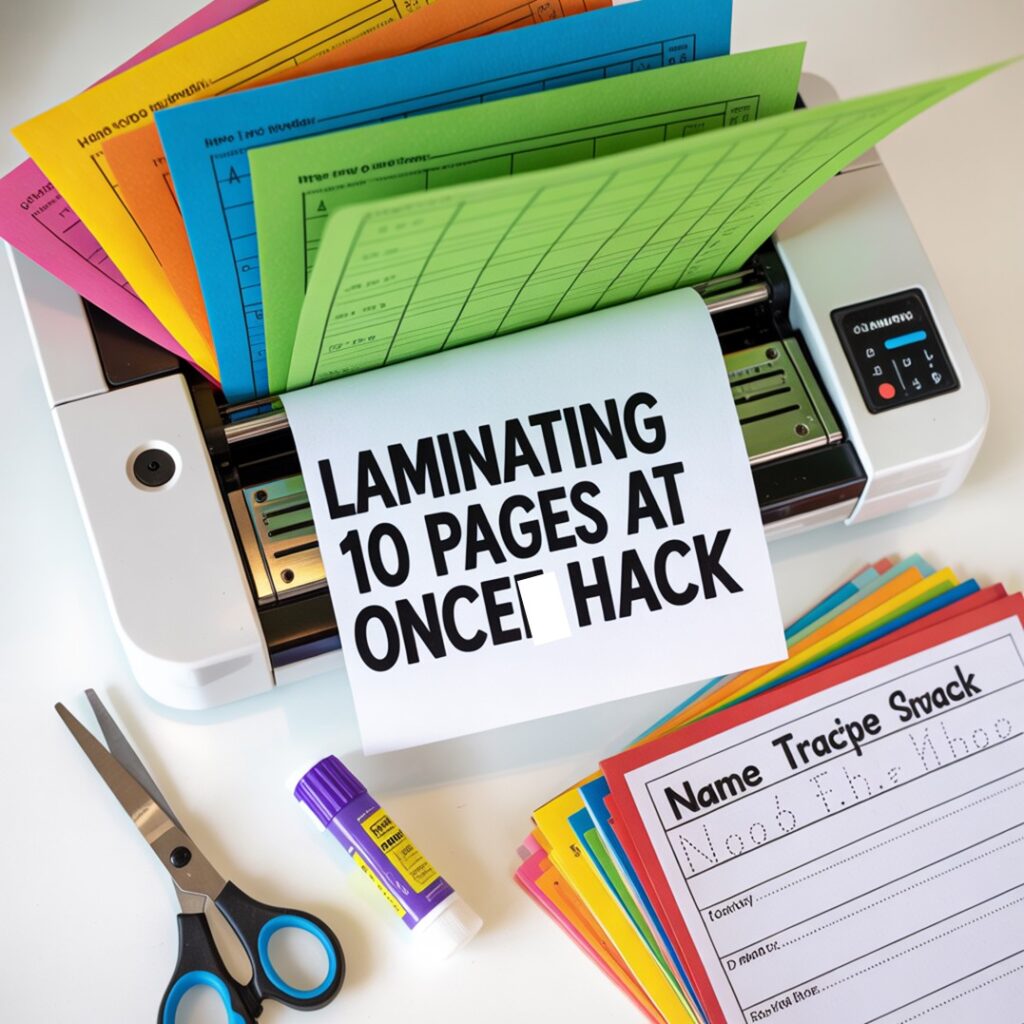
2. Laminate Ten Pages at Once
What it is: Batch laminate without feeding one page at a time.
Why it helps: Massive time boost for centers, task cards, and visuals. See the quick demo from Learning with Kiki — she laminates ten at once and saves so much prep time!
Transcript:
How to laminate several pages in one go… watch as she laminates 10 at a time.
Mini tip: Leave small gaps between sheets to prevent fusing.
If you’re prepping seasonal stations, grab the Christmas Busy Book Mat — it’s a perfect match for these tech hacks since it’s low-prep and easy to print once, laminate, and reuse year after year.
3. Name Writing Copy Hack
What it is: Students write their name once. You scan it and print as many copies as you need.
If you’re working on digital tools to make classroom prep easier, these hacks pair perfectly with my name writing practice mats. You can scan student names once and print copies year-round — it’s the same kind of time-saving magic that inspired the scanning hack in this post.
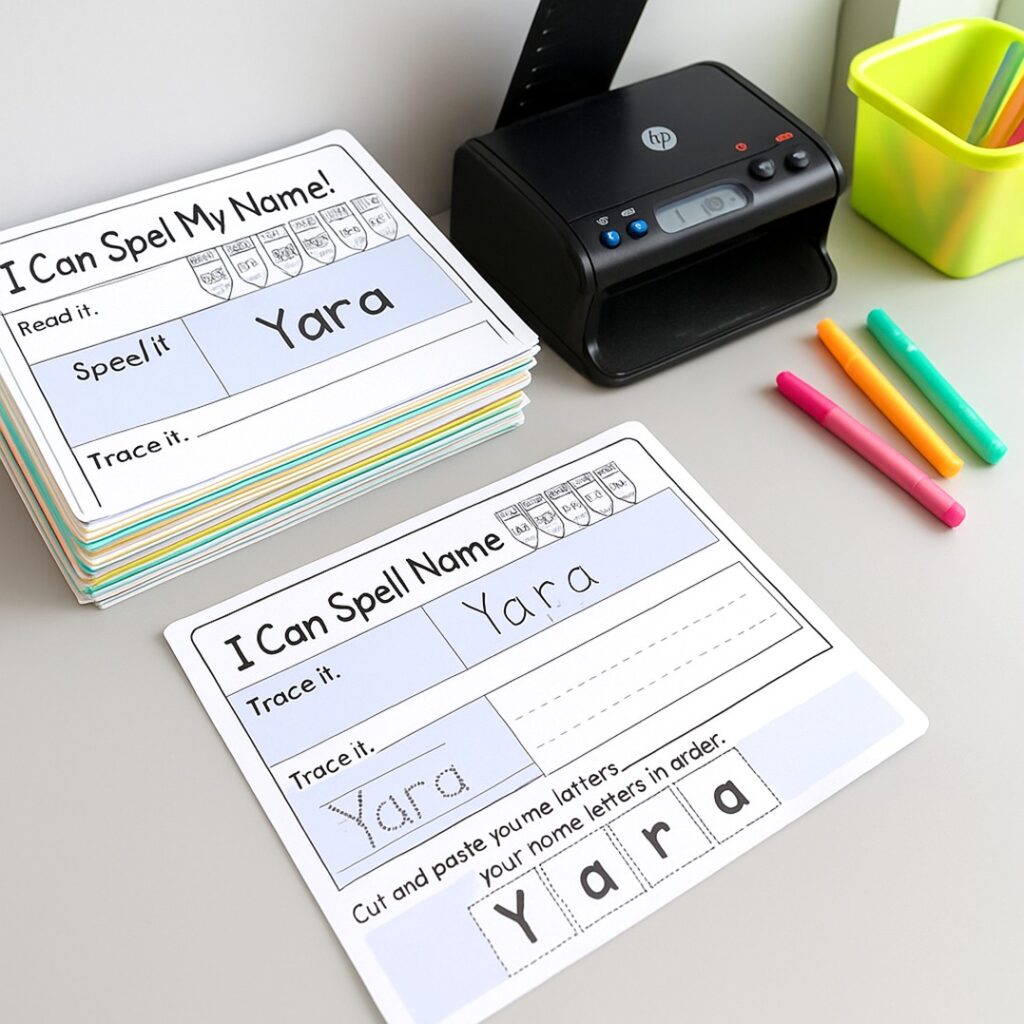
Why it helps: Perfect for name writing practice and portfolios. This preschool teacher shows how she scans each name once and never has to rewrite again.
Transcript:
Instead of having my preschoolers write their name 22 times, they write it once. I scan it to myself and print in color…
Mini tip: Keep a digital folder per student.
If you’re teaching ESL or ELL learners, you’ll love combining the voice dictation hack with my practice English speaking printable prompts. These encourage kids to record, listen, and repeat — the perfect low-pressure tech boost for oral language development.
For yearlong organization, you’ll love my Busy Book Mats Bundle. These editable templates make it so easy to plan centers for early finishers and special ed groups, especially when paired with digital timers or laminated task mats.
4. Recordable “Reader Back” Device
What it is: A small audio device you preload with directions or phonics prompts.
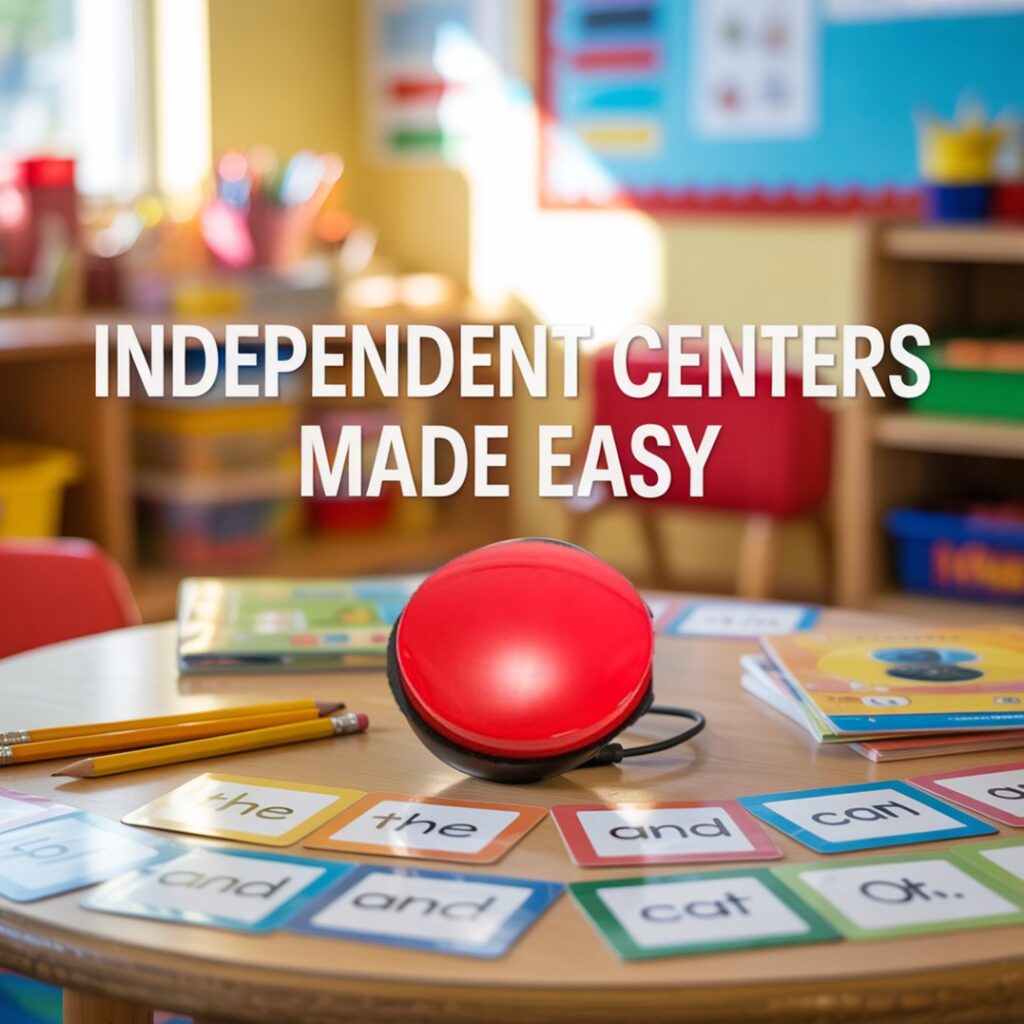
Why it helps: Your voice is there while you run small groups. Lisa Elaine shows how her students tap the button to replay directions when she’s busy.
Transcript:
On the back there’s a record button… kids can push the button and it’ll remind them what to do…
Mini tip: Record short prompts — one sentence max.
Teachers who focus on oral fluency can take it a step further with these ESL pronunciation games. Pair them with the reader-back device hack so students can independently replay instructions and practice sounds at their own pace.
5. Giant High-Contrast Cursor
What it is: Make your cursor big and colored so you can find it on the projector fast.
Why it helps: No more awkward hunting mid-lesson. Courtney’s clip shows exactly where to change the cursor color and size in Windows settings.
Transcript:
Settings → Devices → Mouse → Adjust mouse and cursor size… when it’s pink and big, I can always find it.
Mini tip: Pick a color that pops on white slides.
I also talk more about how we naturally absorb language in my post on language learning versus language acquisition. It’s a great read if you’re curious about why certain tech tools (like voice typing or listening tasks) support real, functional learning rather than rote drills.
6. Voice Typing for Lower Writers and ELLs
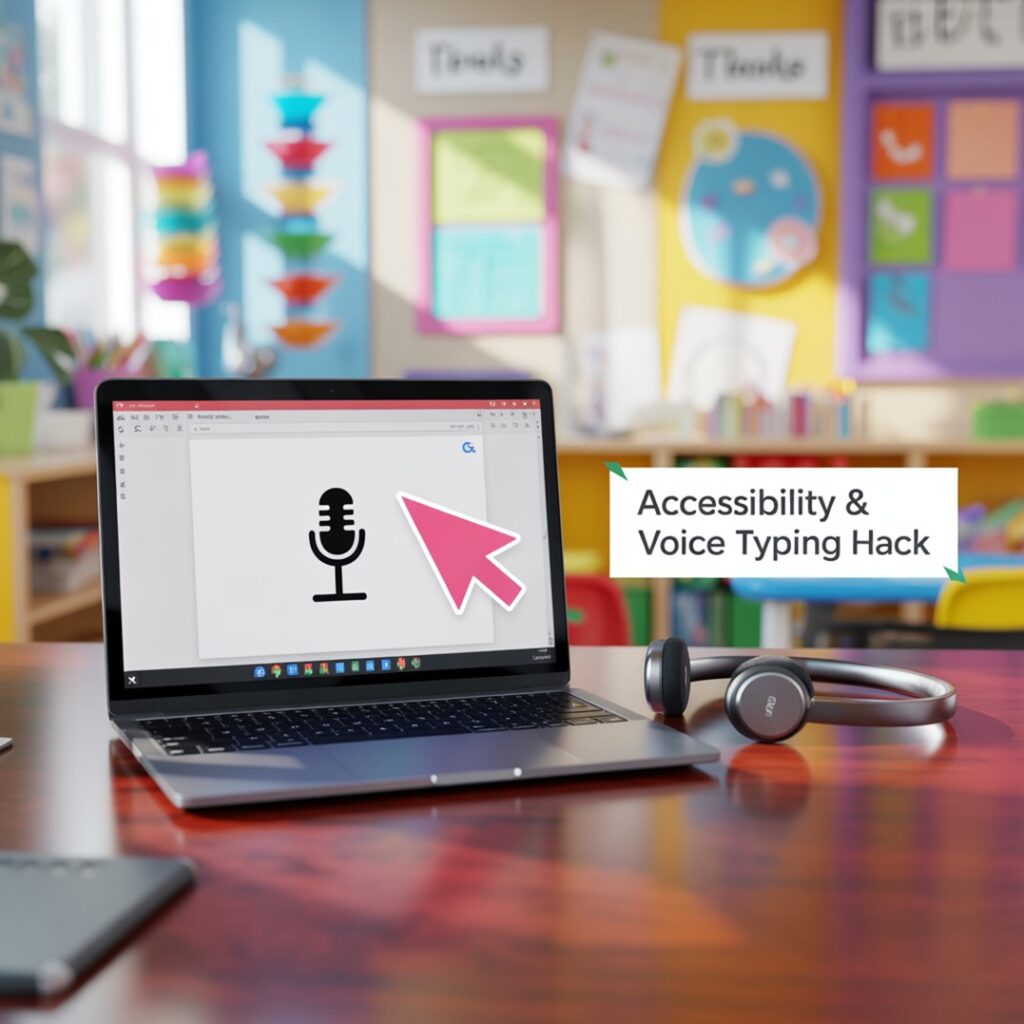
What it is: Students speak their ideas and Docs types for them.
Why it helps: Removes the spelling barrier so ideas flow naturally. This Google Docs hack helps students focus on content instead of spelling errors.
Transcript:
Tools → Voice typing → press the mic… now your lower student can just focus on their ideas instead of spelling.
Mini tip: Teach punctuation commands like “period” or “new paragraph.”
And if your classroom leans into hands-on and child-led instruction, you’ll enjoy my examples of play-based learning. Just imagine combining that with today’s simple tech hacks — letting kids explore, document, and reflect on their own learning experiences through interactive tools.
7. Unlock More Fonts in Google Docs
What it is: Add clean, easy-to-read fonts that look great in slides and worksheets.
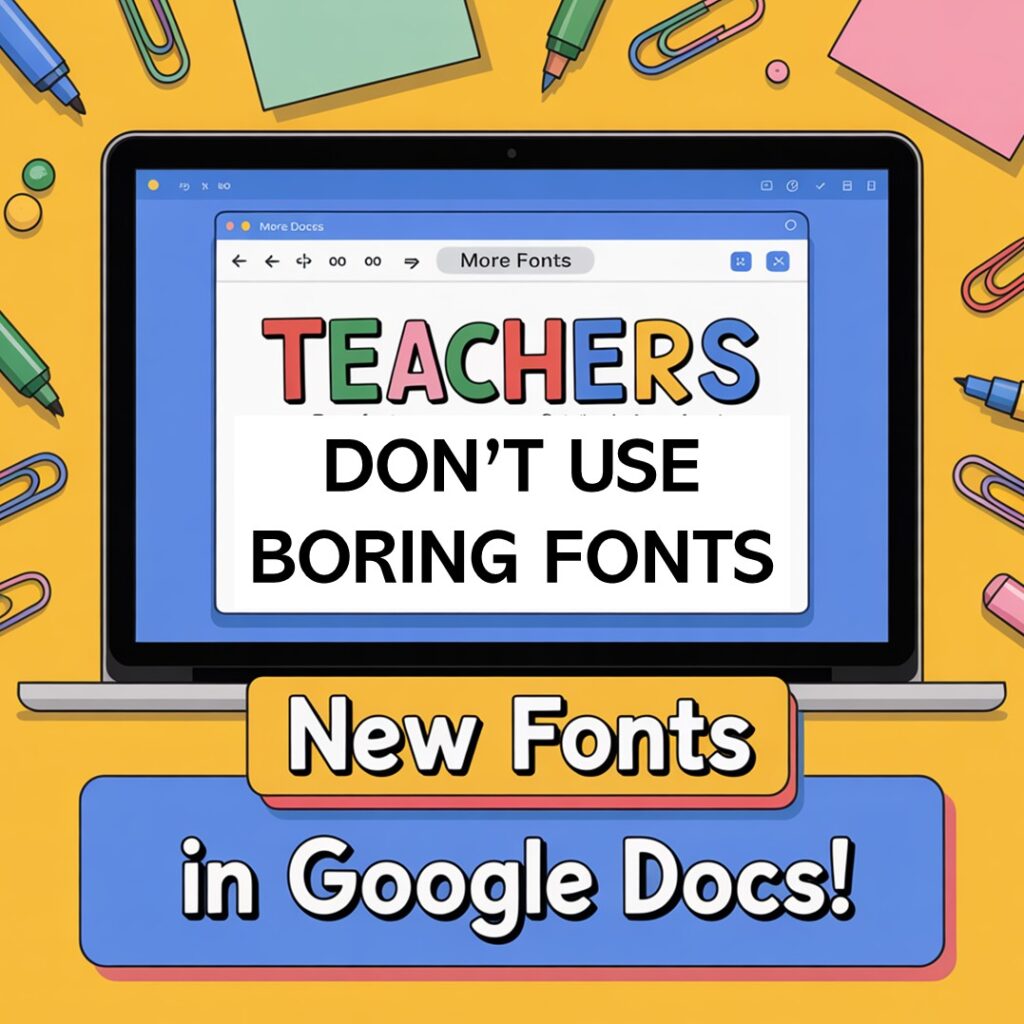
Why it helps: Makes classroom materials more accessible and fun. Try the “Teachers” font shown in this quick demo.
Transcript:
Under fonts click “More fonts”… a whole world opens… my favorite is Teachers… clean, crisp, easy to read.
Mini tip: Keep one font for headers and one for body text.
And if you’re focusing on emotional regulation and real-world classroom behavior, my SEL Scenarios Bundle is a must-have. Combine it with the reader-back device or Apple TV mirroring hack to model calm responses and replay social stories anytime.
8. Digital Clock That Doubles as a Timer
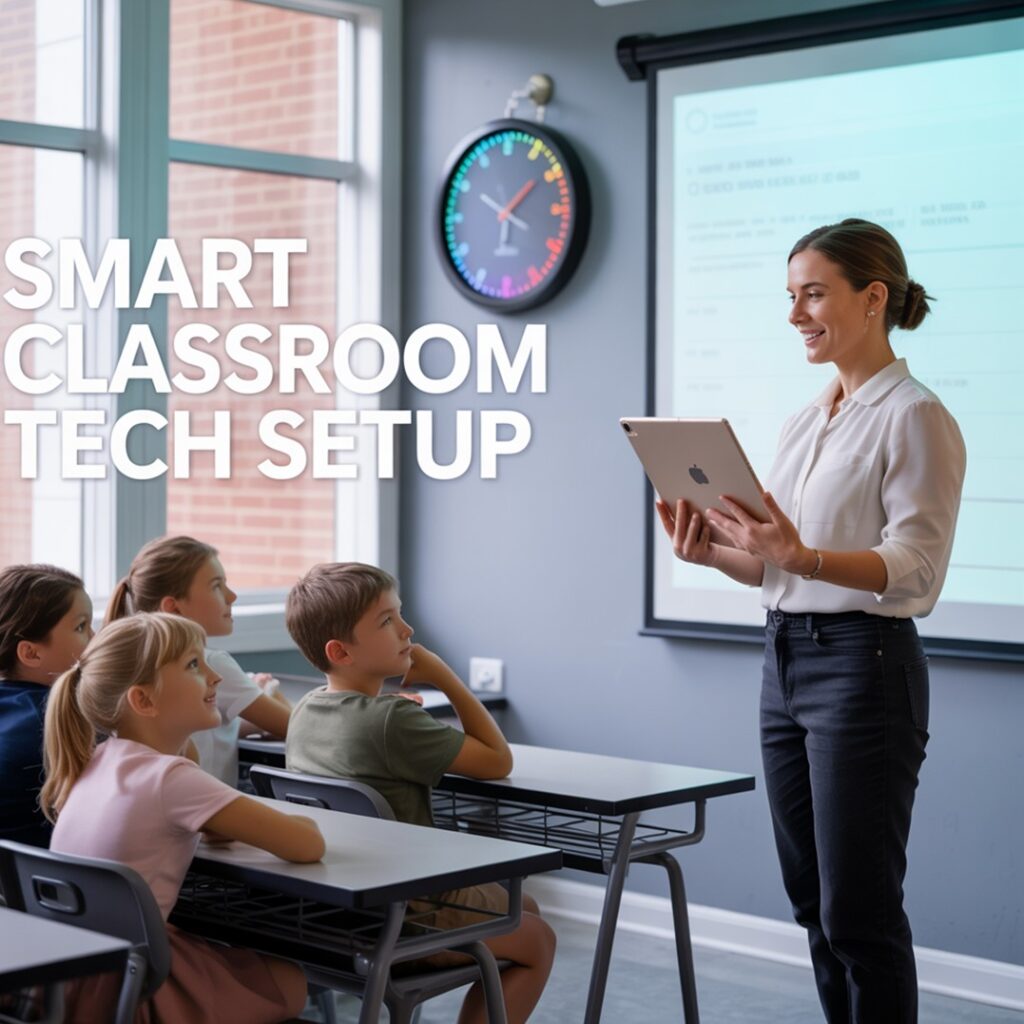
What it is: A large wall display that counts down up to ninety-nine minutes and changes color.
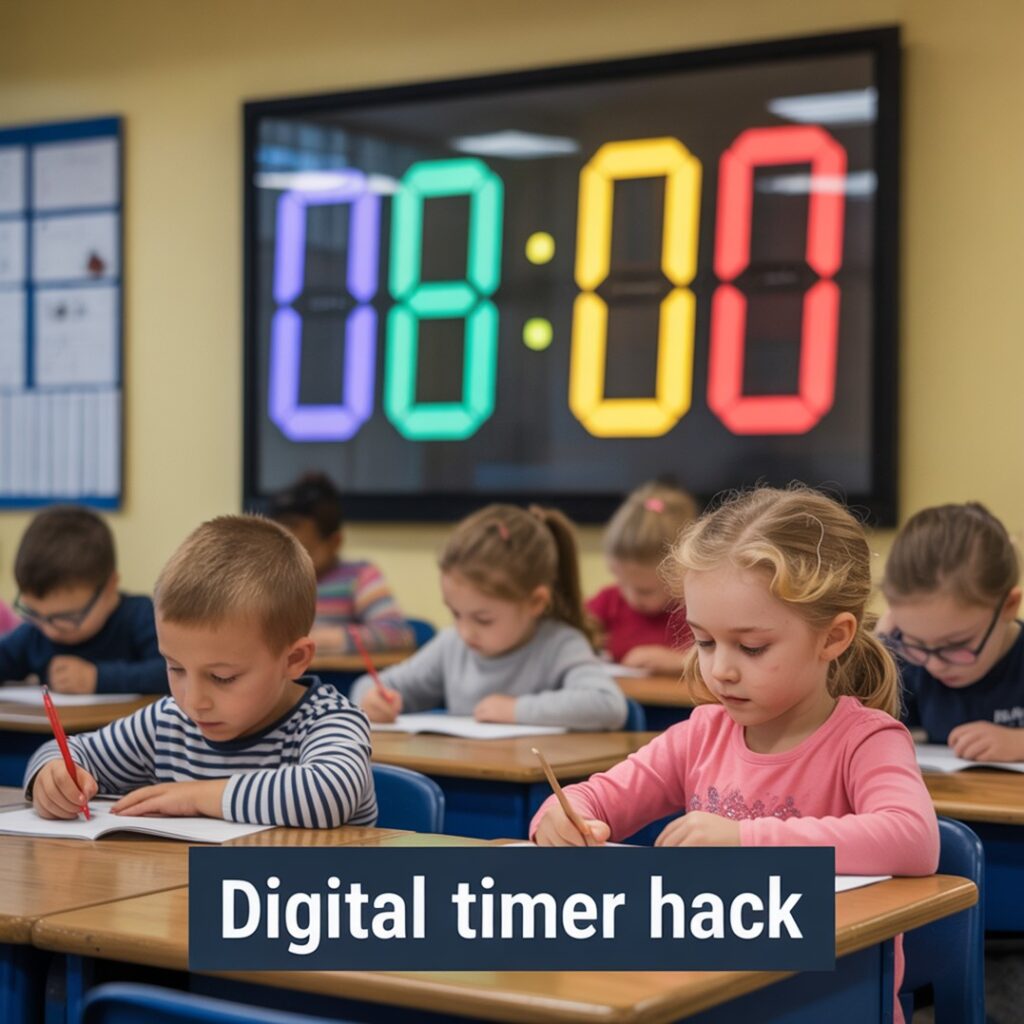
Why it helps: Keeps kids aware of transitions without constant reminders. This TikTok teacher shows how she uses hers to set the vibe for her whole room.
Transcript:
Digital clock that doubles as a timer… change the colors… set up to 99 minutes… shows day, time, temperature, and date.
Mini tip: Use color codes for tasks — green for work, red for tidy time.
9. Promethean Board Shortcuts
What it is: Add website shortcuts straight to your board home screen for one-tap access.
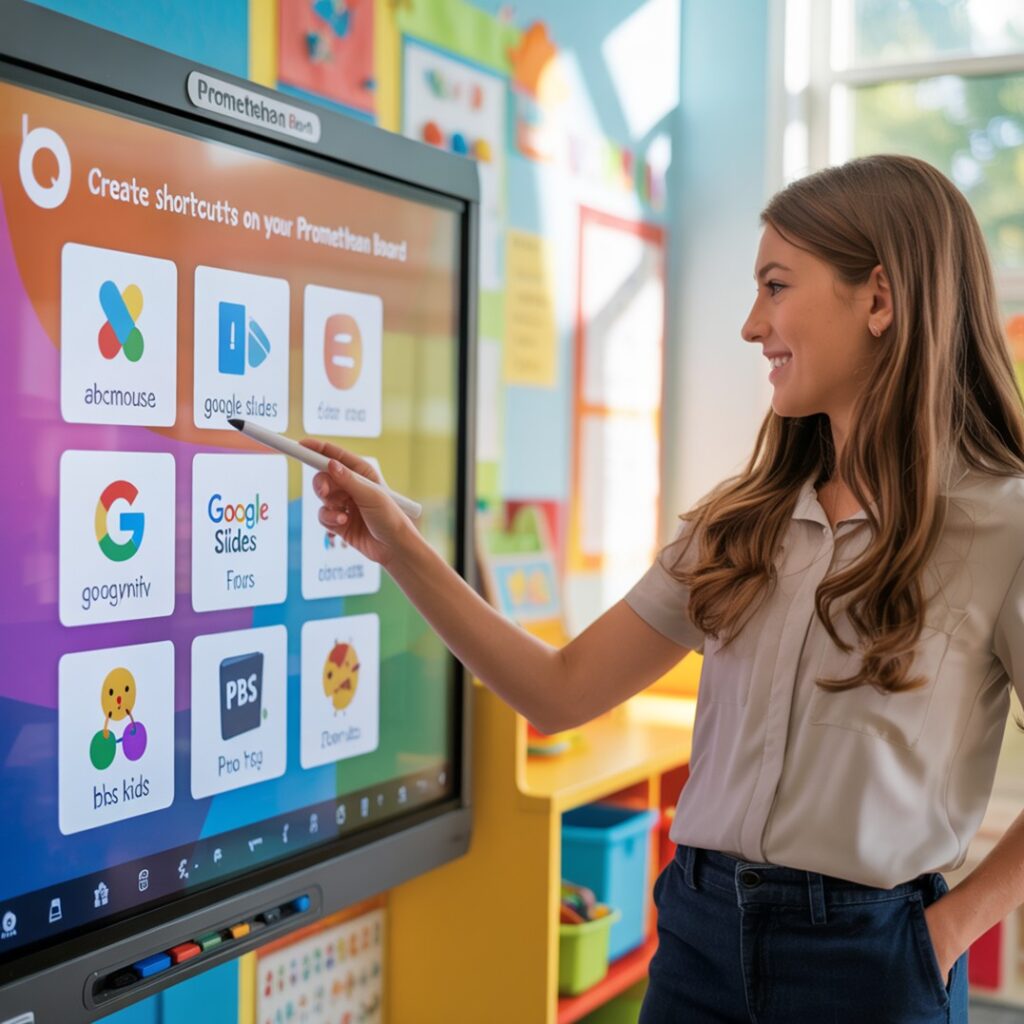
Why it helps: Launch daily sites instantly. Follow this ECE tech tip to learn how to add your most-used links to the Promethean locker.
Transcript:
Open Chromium → skinny snowman menu → Add to home screen → hit Add → shortcut appears every time you log in.
Mini tip: Create a “Daily Five” row (attendance, slides, timer, music, reading).
10. Auto-Generated Seating Charts
What it is: Paste your class list, add rules to keep or separate certain students, and click shuffle.
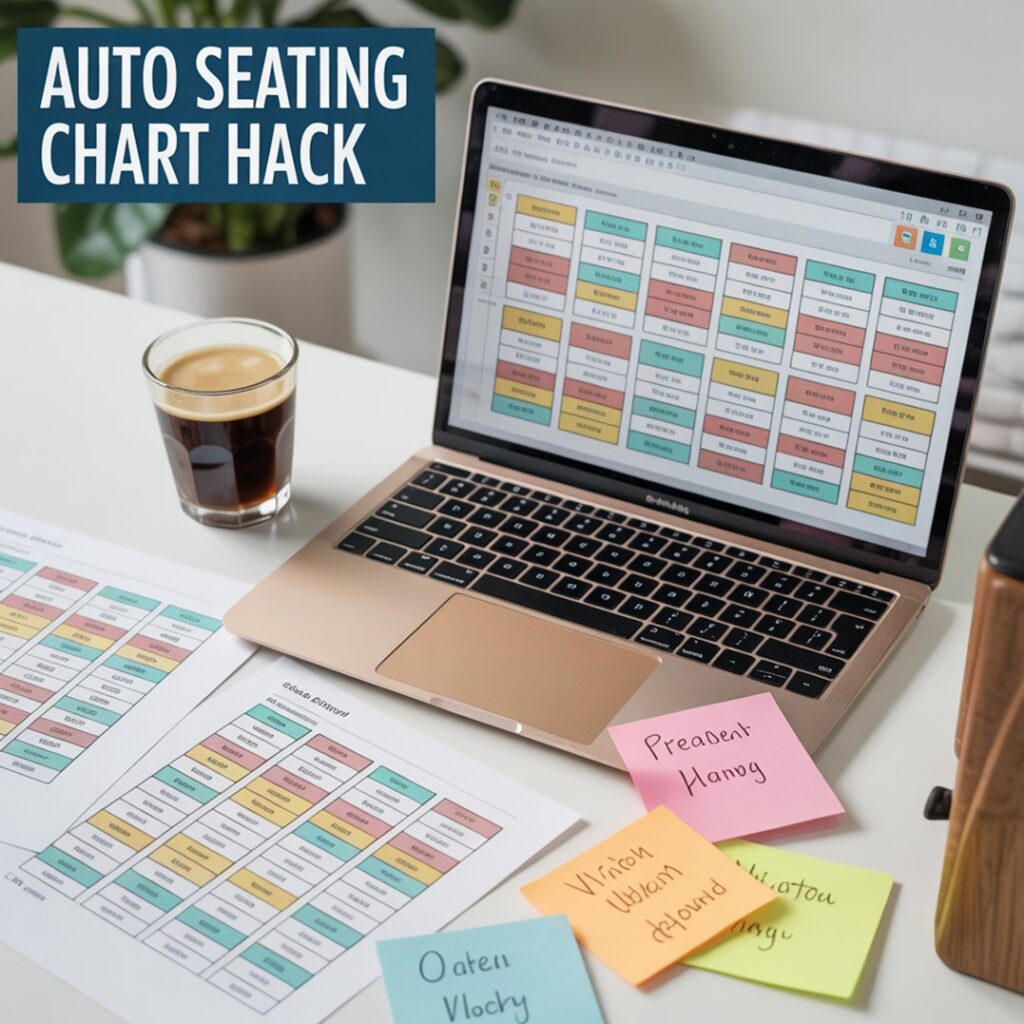
Why it helps: Saves hours of “student Tetris.” This Shuffle Buddy tutorial shows how it automatically builds balanced charts.
Transcript:
Shuffle Buddy is free, no sign ups… copy your class list… set rules… hit shuffle… perfect seating chart every time.
Mini tip: Save versions after each shuffle to track what works best.
11. Wireless Mirroring with Apple TV
What it is: Mirror your laptop, iPad, or phone to your projector wirelessly.
Why it helps: Lets you teach from anywhere and show student work in real time. This Apple TV trick explains how to mirror effortlessly.
Transcript:
I have an Apple TV on my projector… swipe down, click mirror… connect… use it as a doc cam or whiteboard… costs around $130.
Mini tip: Label each Apple TV by room name so you connect to the right one fast.
Why These Hacks Work
They remove friction. Less clicking, fewer interruptions, and way more focus time. Start with the YouTube popup trick and digital timer, then add voice typing for writers who freeze. Set up Promethean shortcuts, try Shuffle Buddy, and treat yourself to an Apple TV mirroring setup when your budget allows.
Okay, tell me I’m not the only one who feels ridiculously proud after discovering a new shortcut that actually works. These hacks might seem small, but honestly? They add up — less wasted prep time, fewer distractions, and smoother lessons all day long.
Start with one or two (the YouTube popup trick and voice typing are game-changers), then add a new one each week. By mid-semester, your tech routine will run itself.
If you try any of these out in your room, tag me or send a quick note — I seriously love hearing how other teachers adapt these ideas. And if you have a favorite I missed? You have to share it. We’re all just trying to make teaching a little easier, right? 💛